Inbox: requests and customer emails in one place
Every booking request, website message and customer email becomes a conversation your team answers from one list, with an automatic reply in your own words.
An add-on we switch on for your business. Ask us about it
Inbox keeps every customer conversation in one list: booking requests, messages from your website's form, emails to your business address and customers' replies to your emails. Your team answers from here, and customers get a normal email from you.
What lands in Inbox
- Booking requests. When someone sends your booking form, the request starts a conversation. Its card sits at the top with Approve, Suggest other dates (or another time) and Decline, the same as in Requests. Step by step: Answer an event request.
- Website messages. Someone who fills in your website's contact form gets a conversation too, with their message on a card.
- Emails. Anything sent to your business address (like info@) once you forward it to Inbox, and customers' replies to the emails Hello to Paid sends them.
Your automatic reply
The moment someone sends a booking request or your website's form, they get your automatic reply. It shows in their conversation as Automatic reply, so your team can see what they were told.
- Go to Settings → Inbox (also linked from Settings → Online booking).
- Under Automatic reply to requests, write what you want them to read, for example "Thanks for thinking of us! We'll get back to you within a day."
- Check What they get underneath, then click Save.
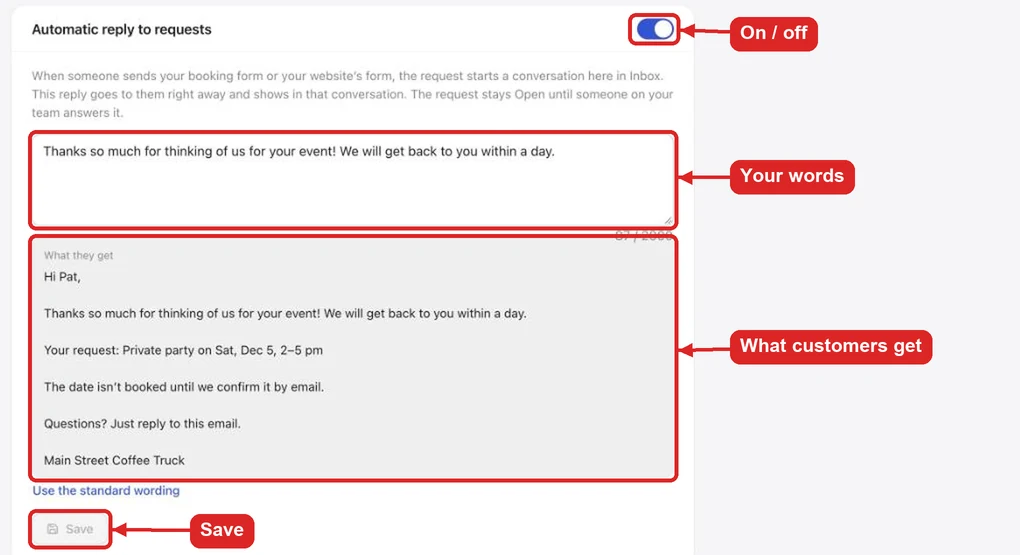
Under your words, the reply always adds what they asked for (for example "Private party on Saturday, November 21 at 2:00 PM, 3 hours, 40 guests"), that the date isn't booked until you confirm it, any deposit they paid, and how to reach you. Turn the switch off to send no automatic reply: the request still shows in Inbox.
Open, Waiting, Closed
| Status | What it means |
|---|---|
| Open | Needs an answer: a new request, or the customer wrote last. |
| Waiting on customer | You answered, or suggested other dates. |
| Closed | Handled: you approved or declined the request, or clicked Close. A new email from the customer opens it again. |
Use the list at the top to show Open, Mine, Unassigned, Waiting on customer, Closed, All or Spam. Whoever answers an unassigned conversation takes it; pick someone else under Owner.
Answer a customer
- Click the conversation.
- Type in the box at the bottom and click Send. They get a normal email from your business, and their reply comes back to the same conversation.
- Use Internal note for anything only your team should see.
Signature (at the top of Inbox) sets the sign-off under your answers. New email writes to anyone.
Get your business email into Inbox
Settings → Inbox shows your Inbox address and how to forward your business address (like info@) to it from Gmail, Microsoft 365 or elsewhere. Once it's set up, answers can also go out from that address instead of "via Hello to Paid".