Answer an event request
Approve a booking request, suggest other dates, or decline it, with or without an email to the customer. Step by step, with pictures.
When a customer sends your booking form, their date is held for them and you get an email with a Review the request button. Every request waits until you answer it: it doesn't expire, and you get reminders while it waits.
Find the request
If your business has Inbox, click Inbox in the left menu. Each request is its own conversation, marked Open.
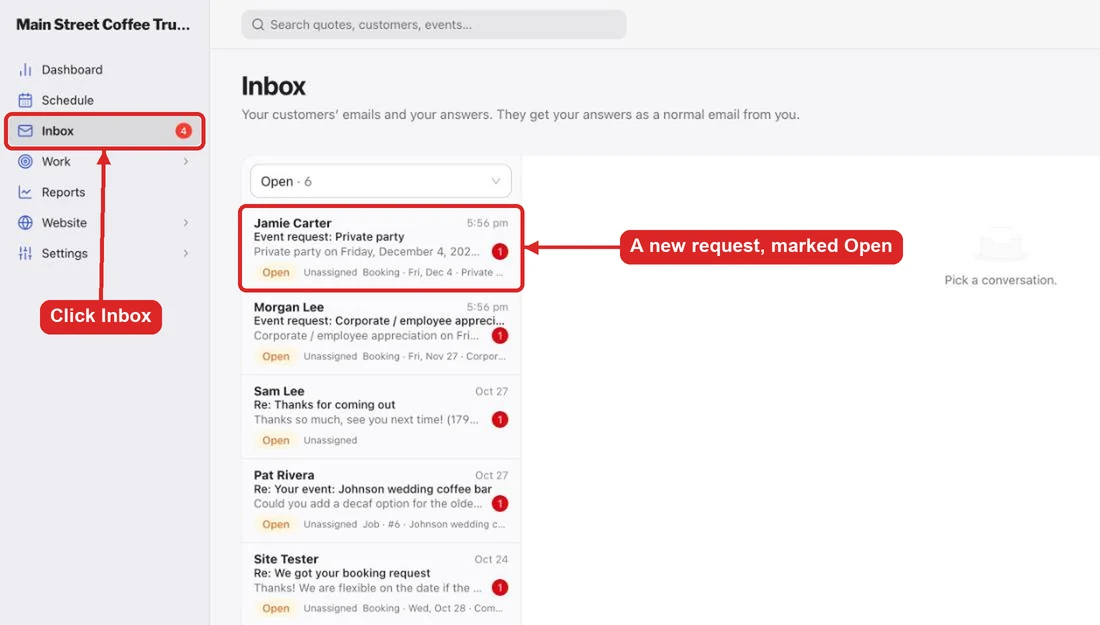
Without Inbox, go to Work → Requests: waiting requests are at the top under Online booking requests waiting. The email's Review the request button opens the request too.
Approve, suggest other dates, or decline
Click the conversation. The request card at the top shows the event type, date, start time, hours, guests and the customer's answers to your booking questions.
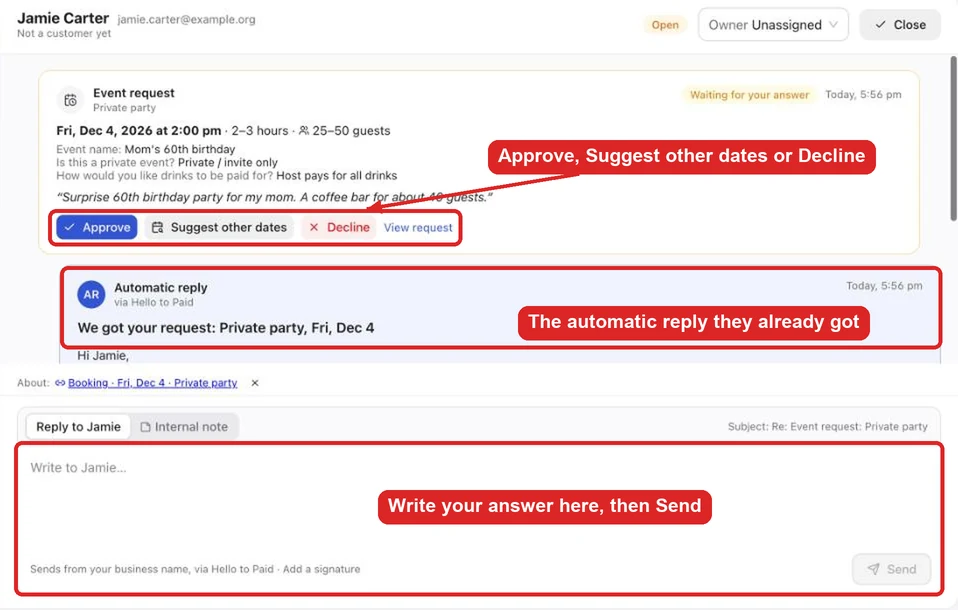
- Approve: the customer gets "You're booked", the event goes on your schedule, and a draft quote is started from the event type's price. Click Open the draft quote in the green message, price it and send it. The conversation closes.
- Suggest other dates: pick up to three open dates and click Send. The customer picks one from their email, and it books if it's still open. The conversation moves to Waiting on customer.
- Decline: add a reason if you like (for example "We're booked that weekend") and click Decline and tell them. The date is free again and the conversation closes.
Under the card is the automatic reply the customer already got. It isn't an answer: the conversation stays Open until you do one of the above or write back.
Close a request without emailing the customer
Already talked to them on the phone, or it's spam?
- Click Decline on the request card.
- Untick Tell them by email.
- Type a note if you like. Only your team sees it.
- Click Close without emailing.
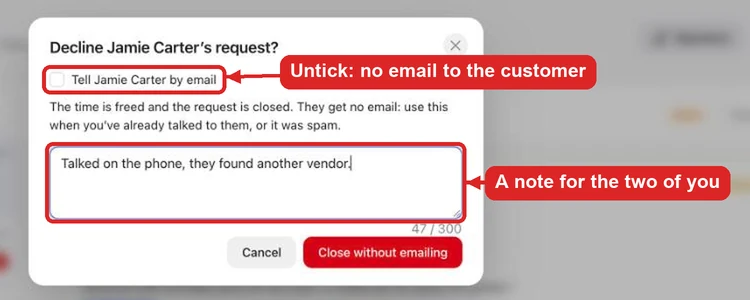
The date is freed and the request is closed. The customer gets no email. A deposit they paid is still refunded.
Write to the customer
Type in the box at the bottom of the conversation and click Send. They get a normal email from your business, and their reply comes back to the same conversation. You can also just hit Reply on the request email you got: your answer goes to the customer from your business and is saved in Inbox.