Vendors and purchase orders
Order a job's equipment from your vendors, email the PO, and record deliveries as they arrive. What arrives counts as the job's material cost.
An add-on we switch on for your business. Ask us about it
Order the equipment a signed job needs straight from the job. Hello to Paid knows what the quote (and any approved change orders) call for, what you've already ordered, and what each item costs you, so a purchase order (PO) takes a minute.
Add your vendors
- Go to Work → Vendors and click Add vendor.
- Enter the Name, your Contact, the Email for purchase orders, phone, Your account # and Terms (for example Net 30).
- In Work → Catalog, open each item you buy and set its Preferred vendor. Items you order go on that vendor's PO.
Order a job's equipment
- Open the job. The Purchasing box shows Order equipment with the number of items still to order.
- Click it. You see each equipment line (labor is never ordered) with how many are needed, your cost and the preferred vendor.
- Untick anything you don't want to order, change quantities or costs, and pick a vendor for any item without one.
- Choose Ship to: the job site or your shop, and an optional Needed by date.
- Click Create purchase order. Each vendor gets its own draft PO.
Items already on a PO aren't offered again. If you cancel a PO, its items can be ordered again.
Send it
- Open the PO (from the job, or Work → Purchase orders).
- Check the items, Needed by, Ship to and Notes for the vendor.
- Click Send to vendor. We email your vendor a summary with a link to the PO as a PDF, and the PO shows as Ordered.
Nothing is emailed until you click Send to vendor. Ordered by phone or on the vendor's website? Click Mark as ordered instead. PDF downloads the same PO to send yourself.
Record deliveries
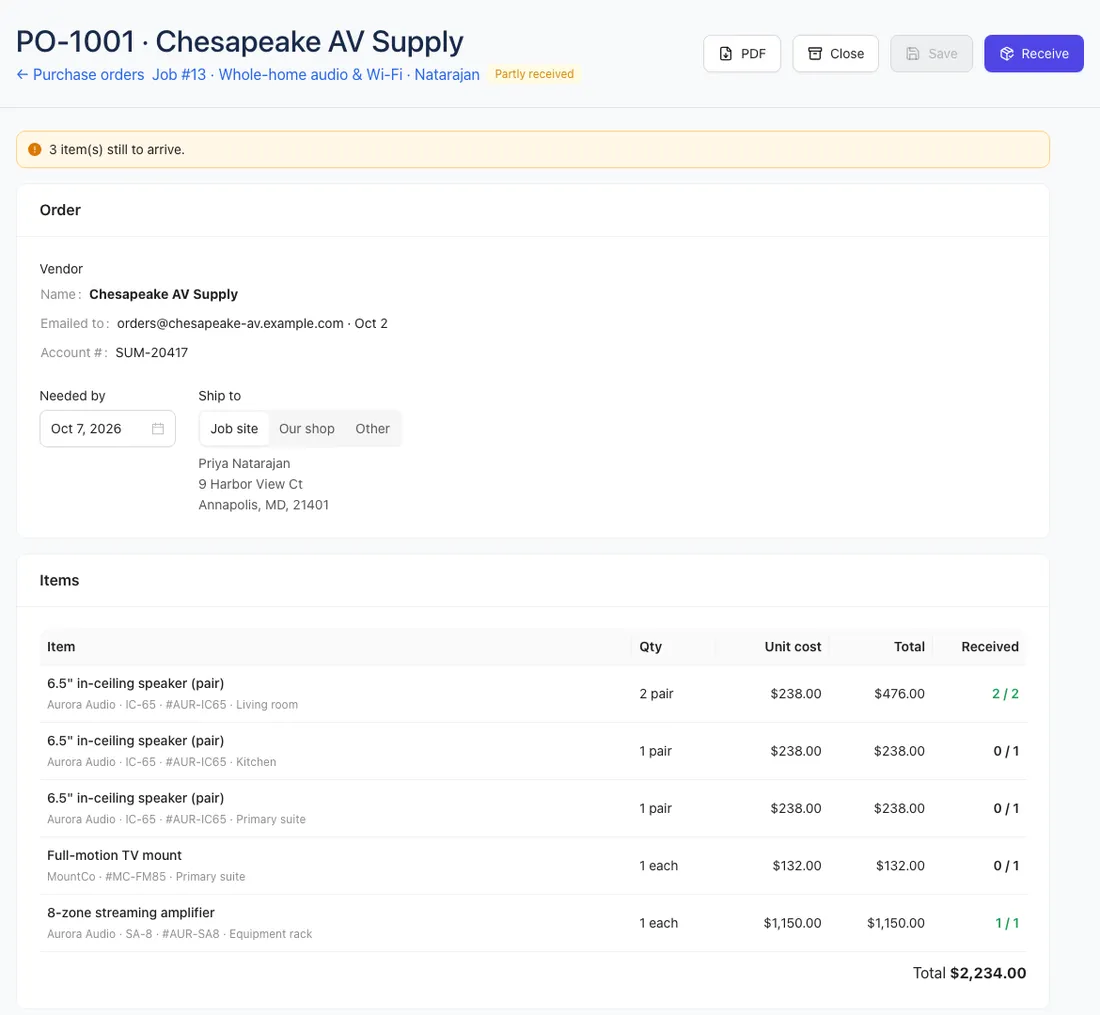
- When a delivery arrives, open the PO and click Receive.
- Enter how many of each item arrived (it starts at everything still waiting), the date and an optional note such as the packing slip number.
- Click Record delivery.
A PO that's only partly delivered shows Partly received and how many are still to arrive; once everything is in it shows Received. Each delivery is listed with who received it. You can't receive more than you ordered.
When you're done with a PO, Close it (anything not received is no longer expected). Cancel PO works only while nothing has been received.
On the job
The job's Purchasing box lists its POs, what's Still on order, and what's been received.
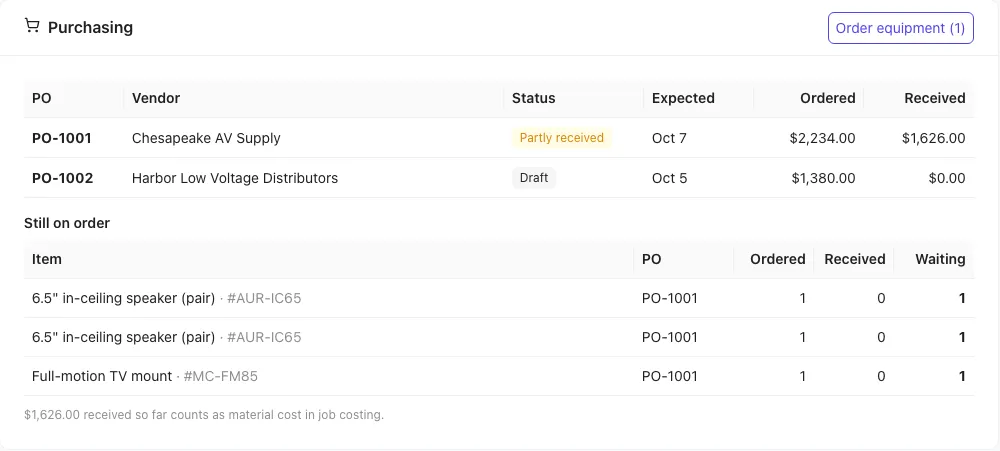
What's received counts as Materials in job costing: the quantity received times your cost on the PO. Don't also log those vendor bills as expenses, or they'd count twice.