Project phases, tasks and budget vs actual hours
Break a bigger job into phases and tasks, see how far along it is, and compare the labor hours you quoted with the hours your crew actually worked.
An add-on we switch on for your business. Ask us about it
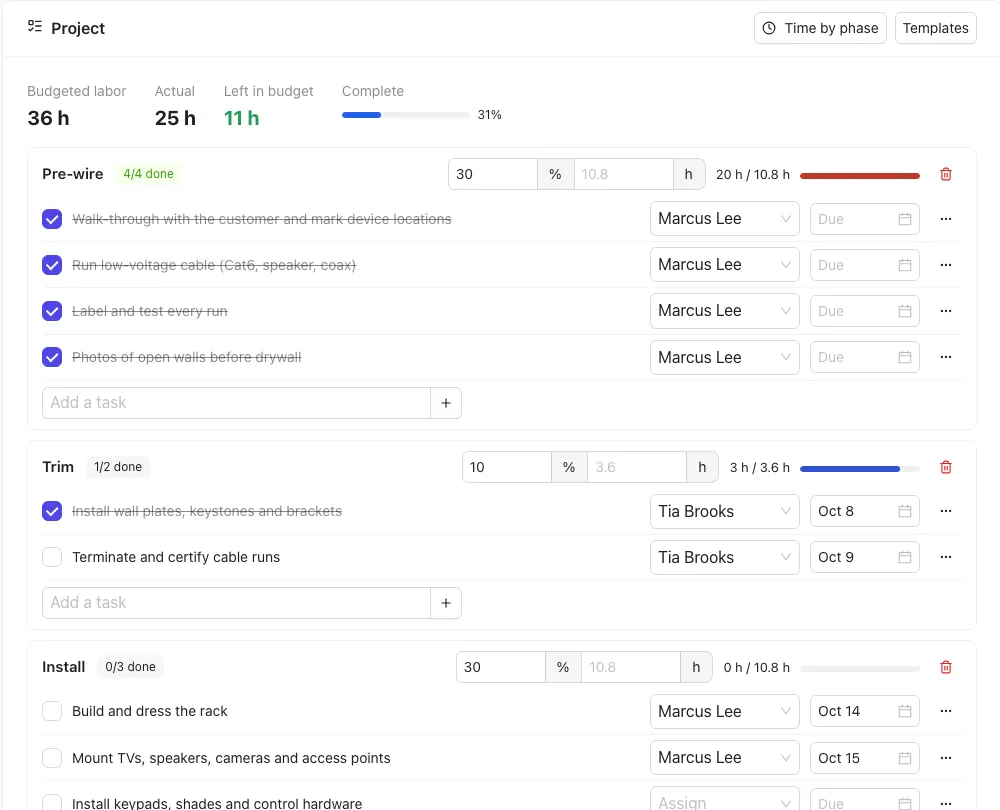
On a bigger job, split the work into phases (for example Pre-wire, Trim, Install, Programming, Closeout), each with its own tasks. You see how far along the job is and whether the crew is inside the labor hours you quoted.
Set up the phases
- Open the job and find the Project box.
- Click a template, for example Smart home / AV project phases. It adds the phases with a starter list of tasks.
- Add your own with Add a phase and Add a task, rename anything by clicking its name, and delete what you don't need.
- For each task you can pick who it's assigned to and a due date, or add a note from the … menu.
Tick off tasks
Tick a task when it's done. Each phase shows how many of its tasks are done, and the job shows its Complete percentage.
Your crew sees the phases and tasks on the job and can tick off tasks assigned to them. They don't see the hours budget.
Budget vs actual hours
- Budgeted labor comes from the job's labor lines: an hourly line (unit hr) counts its quantity, and any other labor line counts its price divided by your labor rate (Settings → Proposals → Labor rate). Approved change orders with labor raise it.
- Actual is the job-labor time clocked on the job. With labeled time, only billable time types count (not travel or shop time). Breaks never count.
- Each phase gets a share of the budget: the template sets one (Pre-wire 30% and so on). Change the %, or type a set number of hours in the h box.
- The bar next to each phase turns orange as it nears its budget and red when it's over.
To see actual hours per phase, the time needs to be logged to a phase. Click Time by phase in the Project box and pick the phase for each time entry.
The report
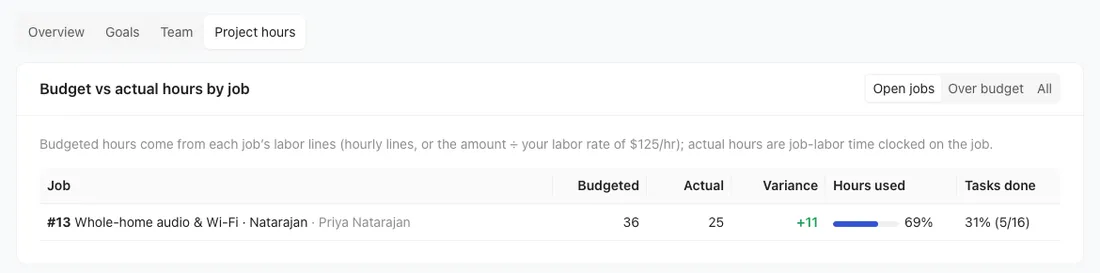
Reports → Project hours lists every open job with labor or project tasks: budgeted hours, actual hours, the variance, how much of the budget is used and the % of tasks done. Switch to Over budget to see only the jobs that went over. Click a job to open it.